Table of Contents
Handover
Handover allows your team to book customer or prospect calls on behalf of their colleagues, directly from a record inside Salesforce. You can perform a handover on any object that has the Booking com…

Table of Contents
Handover allows your team to book customer or prospect calls on behalf of their colleagues, directly from a record inside Salesforce. You can perform a handover on any object that has the Booking component.
Organizers are the people who book meetings on behalf of others. They are typically handing over a record to their colleague.
Hosts are people who have meetings booked on their behalf. They are typically about to take ownership of a record.
Guests are people who attend the meeting, external to your organisation, such as prospects or customers.
Performing a handover
To initiate a handover, navigate to the record you want to hand over and click the 'Create Booking' button on the Booking component.
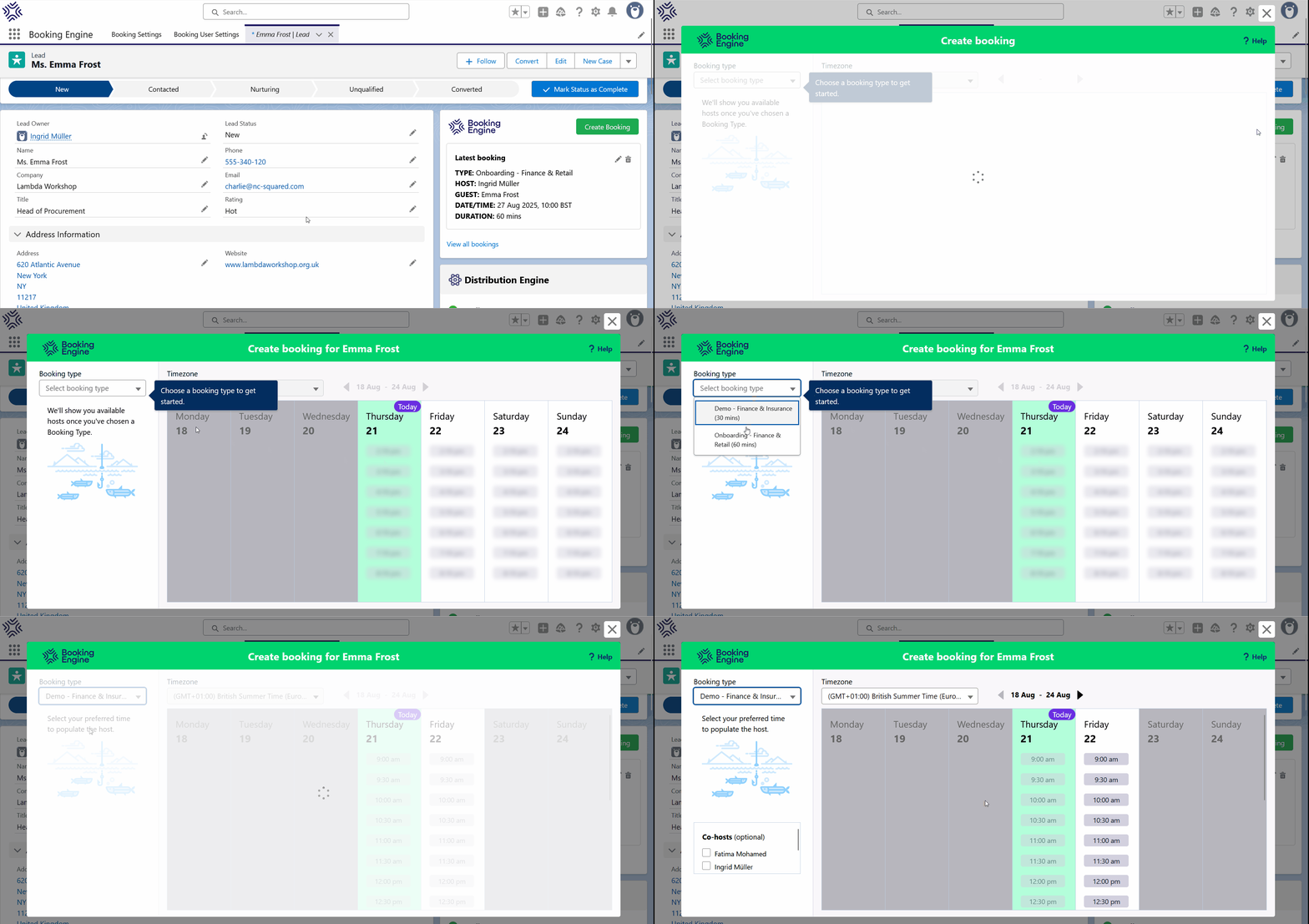
Select which booking type you want to use for the handover.
Host selection
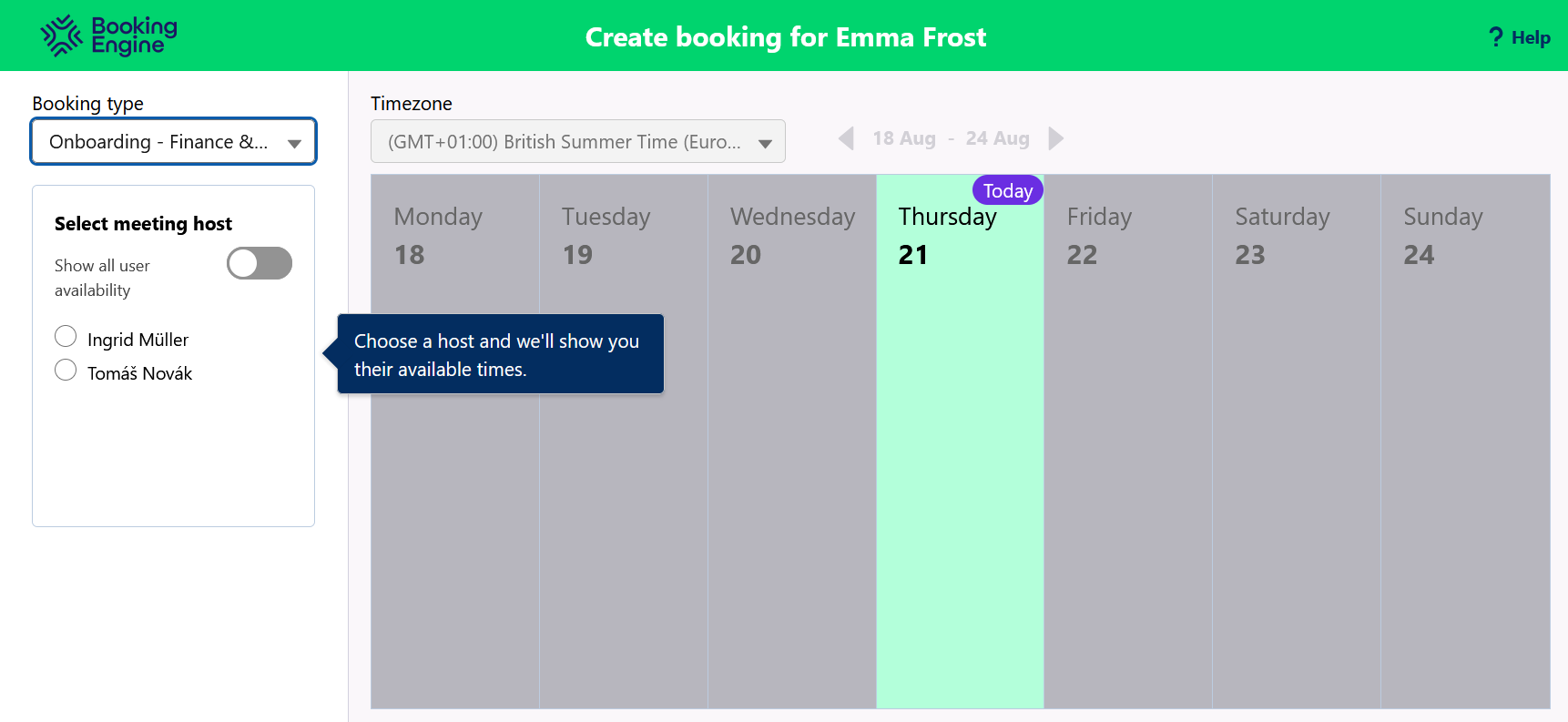
If your booking type allows a choice of Hosts, you can select your host from the host panel. When selecting a host, the availability panel will be updated.
Show all user availability
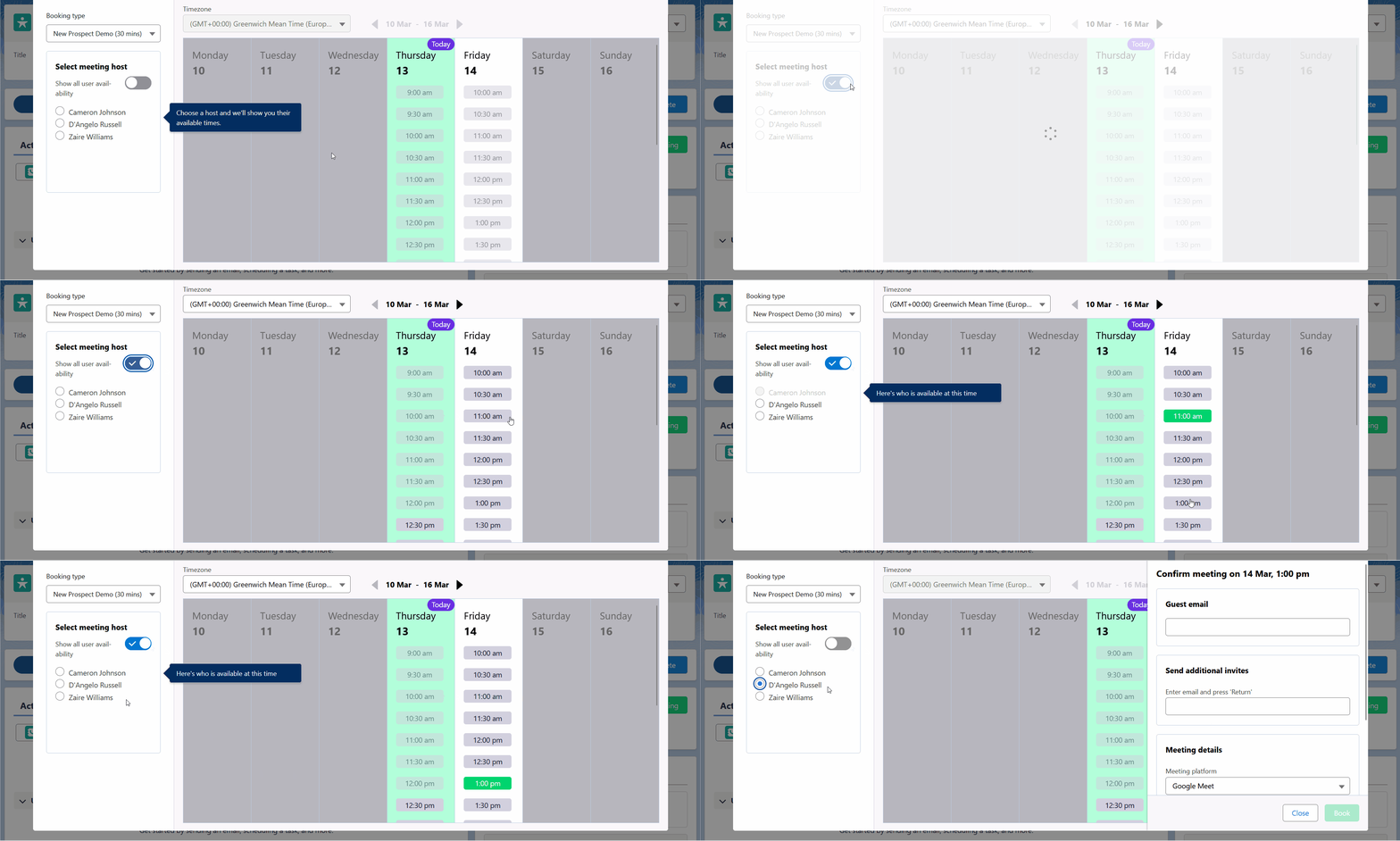
This feature allows you to see the availability of all of your hosts, rather than having to select a host before seeing availability. This can be useful if your guest can only make a limited range of times.
To use this feature, click 'Show all user availability'. This will then show all times that any of your hosts are free. When a time is selected, you can then select from the hosts who are available at that time on the hosts panel.
Co-Hosts
If Co-hosts is enabled on your chosen booking type, you can optionally invite additional hosts to the meeting. To do this, select the co-host you want to invite. This will restrict the available booking times to only those that the host and all co-hosts can attend.
Time selection
Once a host is selected, if a host is selected for you, or if you're using a booking type with Time First enabled, you will be able to select a date and time.
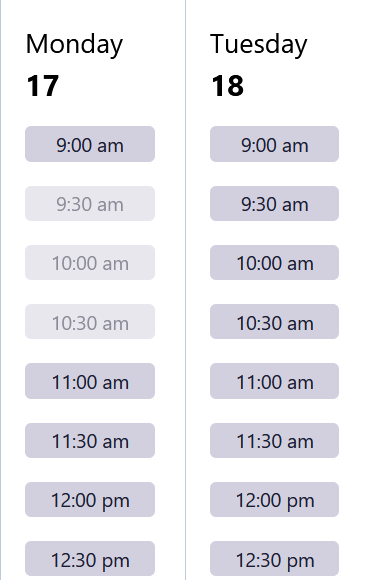
By default, you will see the current calendar working week, with the days that have passed greyed out as well as any non-working days for the booking type.
To select a time, click an available time, and the booking details panel will expand.
Booking details
The booking details panel allows you to review the invitees and the meeting platform for the booking. To change the date or time of your booking, click the Close button to dismiss the panel.
Guest Email
The guest email field is the email address of the primary guest of the booking. Depending on the booking type, this may be pre-populated from the record information. This guest will recieve an event invitation email when the booking is created.
Send additional invites
You can invite additional guests to a booking by adding their email addresses. To add an email address, type it in the field and press enter. Each guest added this way will recieve an event invitation email when the booking is created.
Meeting Details
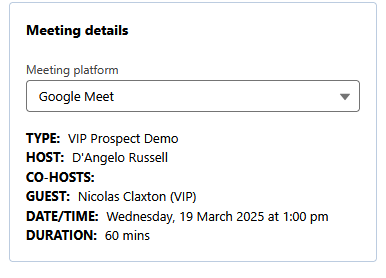
The meeting details section gives you an overview of the booking. It also allows you to change the meeting platform. By default, the meeting platform will be populated with the host's default meeting platform, but this can be changed to any other meeting platform the host has connected, or No meeting platform.
Edit event content
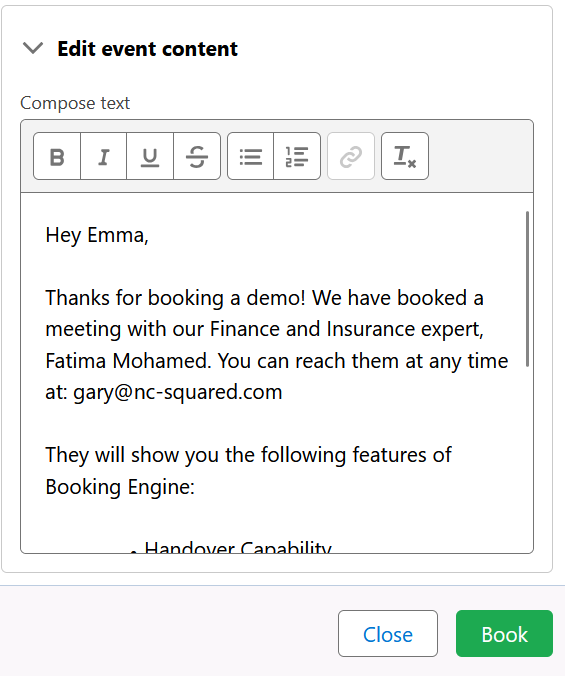
This section allows you to review and edit the email that will be sent to all guests to confirm the booking. Any changes made will only apply for this booking and will not change the default email content.
Complete Booking
When you're satisfied with your booking, click the Book button. This will email an event invitation to all guests. The hosts will be informed of the booking by Booking Engine.
How did we do?
View Bookings