Slack Integration - Installation
Slack integration enables real-time assignment and SLA alerts in Slack with precise control. Requires installation steps, user mapping, and flow activation.

Overview
Distribution Engine allows you to notify your team of their assignments and SLA alerts directly in Slack, ensuring that your team is alerted in real time to work that require their attention. Slack notifications can be enabled on a distributor by distributor basis, giving you have precise control over the alerts that each team receives - ensuring that the team are notified of important work, but not disrupted by less urgent tasks.
This page covers the installation of the Slack integration. Mapping users and configuring notifications are covered in the linked articles.
Installation
There are a number of pre-requisite steps that must be performed before the Slack integration can be enabled. These will require a user with Salesforce Admin privileges.
Remote Site Settings
Slack requires the following Remote Site Setting to be added to your org, this must be in place before enabling the feature:
Remote Site Name | Remote Site URL |
DistributionEngineSlack | https://integrations.nc-squared.com/ |
External Client Apps
In order for Distribution Engine to communicate with Slack, there are some changes needed to External Client Apps. To do this:
- Navigate to Salesforce Setup
- Search for "External Client App Manager" and open it
- Select "Distribution Engine Integrations" (Do Not Use - "Distribution Engine Integrations v2")
- Under the Policies tab, click Edit to the right of "App Policies"
- Expand OAuth Policies
- Enable Client Credentials Flow and select a user to run as. This user must have the Distribution Engine Slack Integration User permission set and a Distribution Engine Managed Package License.
Flow enablement
Slack integration requires that the DE Slack Update Flow and DE Slack Update on new log flows to be activated in order to receive notifications. You can do this by following these steps:
- Navigate to Salesforce Setup
- Open the Flows page
- From the flow list, View and Edit the DE Slack Update flow from the right side dropdown.
- Click Activate and navigate back to the flow list
- From the flow list, View and Edit the DE Slack Update on new log flow from the right side dropdown.
- Click Activate
To enable the Slack integration, navigate to the Distribution Settings page and go to the Integrations tab and follow the on-screen instructions to enable the feature.
Before installing the Slack application; you can optionally choose to automatically map users. For more detail on this see the mapping users page.
Slack Application
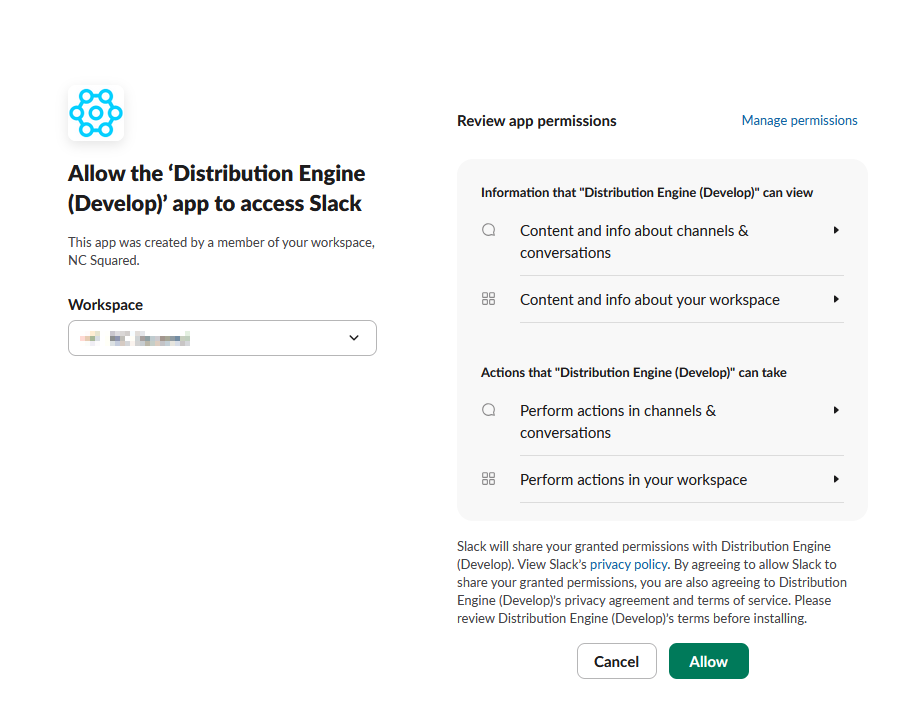
As part of the installation, you will be redirected to the Distribution Engine app on the Slack marketplace. You will need to select the workspace that you want to receive notifications in, and allow the appropriate permissions.
Each Slack workspace supports only one connected Salesforce org — so two orgs (e.g. sandbox and production) can't share the same workspace.
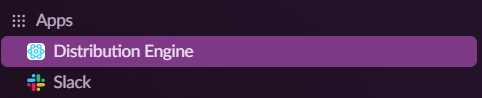
Upon successful connection, you should see the Distribution Engine app available in Slack:
And the Integrations page in Distribution Engine should update to reflect the connected status:
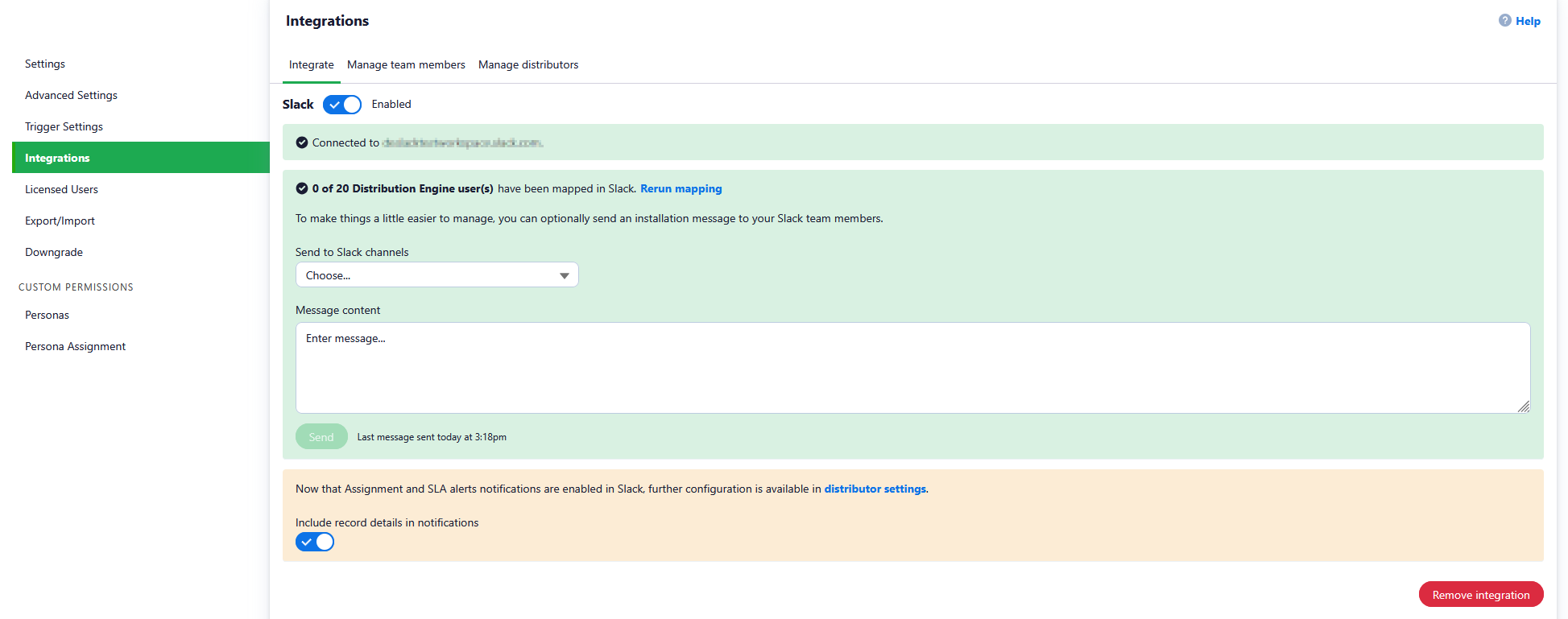
Now that the installation is completed, you will need to ensure that your users have had their accounts mapped and that your Distributors have been configured before you can receive notifications.
How did we do?
Slack Integration - Overview
Mapping Users in the Slack integration