Web Form Qualification Rules
What are web form qualification rules? Web form qualification rules allow you to define different outcomes for users who are submitting forms. These outcomes can be different booking types, a url red…

What are web form qualification rules?
Web form qualification rules allow you to define different outcomes for users who are submitting forms. These outcomes can be different booking types, a url redirect or a message.
For example:
You have a form on your website that collects the following data: Name, Email, Annual Revenue, Industry. Using web forms qualification rules, you might choose to have any user with an Annual Revenue of over $10000000 to book a meeting directly with your sales team. For annual revenue under that, you may choose to send them to industry specific SDR teams to manually qualify the opportunity. Finally, for industries you are not currently targeting, you may choose to not let them book a meeting at all, instead leaving the record to be distributed for an asynchronous response as a low priority lead.
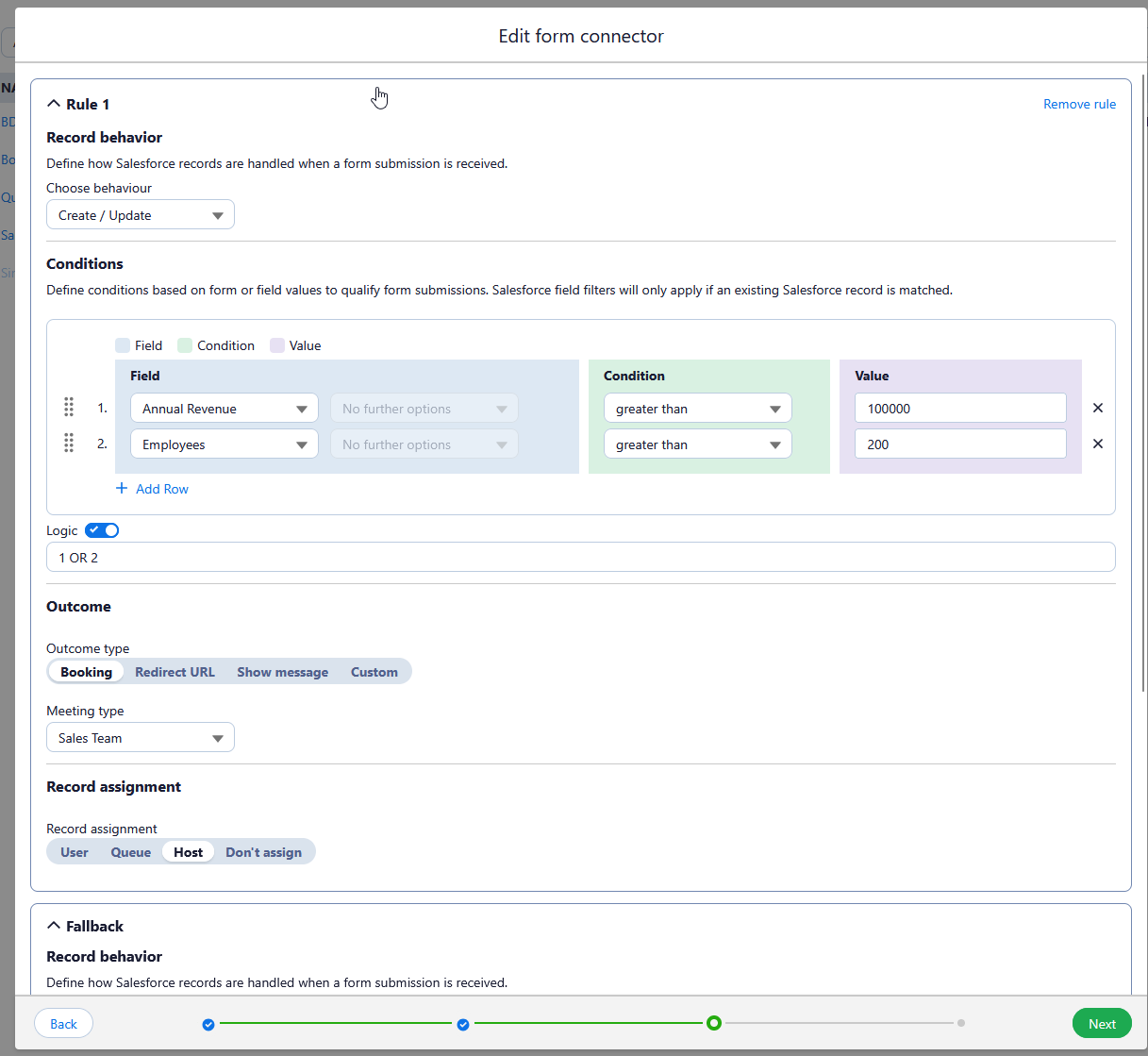
Qualification rules
A form connector can contain many qualification rules, which are processed in order from Rule 1 onwards, to determine the outcome for your web form. You will always have to have a Fallback rule, which determines the behaviour when no other rules are met.
Rules are comprised of four parts: Record Behaviour, Conditions, Outcome, Record Assignment.
Record Behaviour
Record Behaviour determines how Booking Engine handles the creation of new records, and the updating of existing records. The behaviour will be impacted by whether a matching record has already been found. See here for more information on matching.
Behaviour | No matching record found | Matching record found |
Always Create | Creates a new record and Salesforce Event. | Creates a new record and Salesforce Event. |
Create/Skip | Creates a new record and Salesforce Event. | Salesforce Event is linked to matching record, no other updates |
Create/Update | Creates a new record and Salesforce Event. | Salesforce Event is linked to matching record. Any mapped fields from the form will overwrite existing the data on the matched record |
Ignore | Does not create a record or event. | Does not create or update a record or event. |
Conditions
The conditions are a collection of logical statements that determine whether a record is eligible for this rule. Conditions can use either data directly from the form (as defined in the form connector) or from Salesforce. Fields from Salesforce will be populated from the matched record when a match has been found. If a match has not been found conditions using Salesforce fields will always return true.
You can add multiple rows of conditions by using the 'Add Row' button.
Logic
You can optionally choose to define the logical operators that will link the conditions. If you don't enable logic, by default all conditions are linked with AND operators (i.e. all conditions have to be true to use this qualification rule.
You can use 'AND', 'OR' and brackets as well as the condition numbers to write the logic for the rule.
For example 1 AND (2 OR3) is: Condition 1,must be truy and either condition 2 or condition three must be true.
Outcome
Four outcomes are available for each booking rule:
- Booking - Form submissions that meet this rule will be allowed to book a meeting. Choose the Shared Availability rule that you want to use for this booking.
- Redirect URL - This will redirect form submissions to the defined URL. This is useful if you have a thank you page you want to direct users who will not get an opportunity to book.
- Show Message - This will display a message when form submissions use this rule.
- Custom - This provides a callback that you can use to invoke your own behaviour that you want to use. This will require the callback to be handled in the page hosting the form.

Record Assignment
This section configures who the record will be assigned to when a meeting is booked.
- User - Assigns to a specific named user.
- Queue - Assigns to a specific named queue for objects that support queues.
- Host (Booking Outcome Only) - Assigns the record to the host of the meeting.
- Don't assign - Doesn't assign the record.
How did we do?
Guest Cancel & Reschedule Bookings
Booking Engine - External Services