Form connectors
What are form connectors? Form connectors allow you to map fields from a form, such as a Book With Me page or external web form , to Salesforce fields. For Book With Me and Shared Availability links,…

What are form connectors?
Form connectors allow you to map fields from a form, such as a Book With Me page or external web form, to Salesforce fields.
For Book With Me and Shared Availability links, using a form connector is optional. Form connectors let you create Salesforce records for bookings, or match incoming bookings to existing Salesforce records and associate the booking event with the matched record.
For web forms, form connectors are mandatory and allow Booking Engine to interpret the fields on the external form for record creation, matching and qualification decisions.
Managing form connectors
To manage form connectors, go to the Booking Settings tab of Booking Engine and click the 'Form Connector's option on the vertical navigation. From here you can add new Form connectors from the Add Rule button, or edit an existing rule by clicking on its name. The row menus on each Shared Availability rule will let you activate/deactivate existing form connectors and test Booking Engine type forms.

Creating or editing a form connector
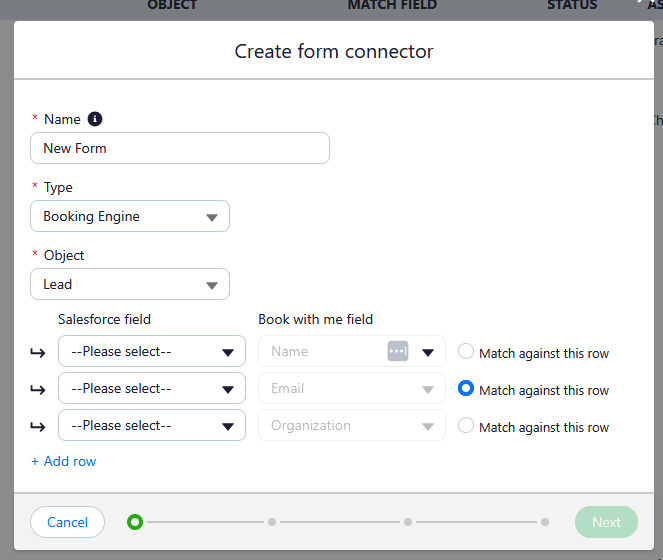
The first page of the form connector editor contains information about the form connector as well as the data mapping.
You will need to populate the following fields:
- Name: The unique name that this form connector will use.
- Type: What type of forms this connector is for:
- Booking Engine: This connector is for booking engine hosted forms for Shared Availability and Book With Me
- Web Form - Simple: Use this connector for a web form that directly connects to a single Shared Availability with no qualification
- Web Form - Qualification: Use this connector when a web form needs different outcomes based on submitted data — for example, showing a booking page to some respondents but not others.
- API Name - For Web form - qualification only - This is a unique name used by the javascript snippet.
- URL - For Web form - qualification only - This is the url used in the javascript snippet to call the correct form connector.
- Object - The Salesforce object type that this form connector will create and match
- Salesforce Fields - This section allows you to map fields from the form to their appropriate fields on the selected object. For example, ensuring that the 'full name' field on your form maps to the 'name' field on the lead object. The functionality of this field depends on the type of form connector:
- Booking Engine type:
- The book with me form fields are pre-populated. Name, email and organisation are mandatory, and you can optionally choose to map the 'reason for booking' field by clicking add row.
- Web form type:
- The form fields will have to be populated with field names relating to those on your web form. These entity names will be used in the booking library javascript for your form.
- At least one field must be assigned to the 'Name' and 'Email' attributes to ensure that booking engine can send an email to the guest.
- Booking Engine type:
- Matching - One of the form fields must be selected as the 'Match' row. When a form entry is submitted the data in this field will be compared to that of all existing records of the record type, and if another record is found with a matching value, then instead of creating a new record, the booking information and event (if appropriate) will be created against the existing record. Email is generally a good matching field to use as it often uniquely identifies an individual.
Matching Example:
A form connector is configured to match on email for the Leads object. A form submission comes in with the email '[email protected]'
Default Values
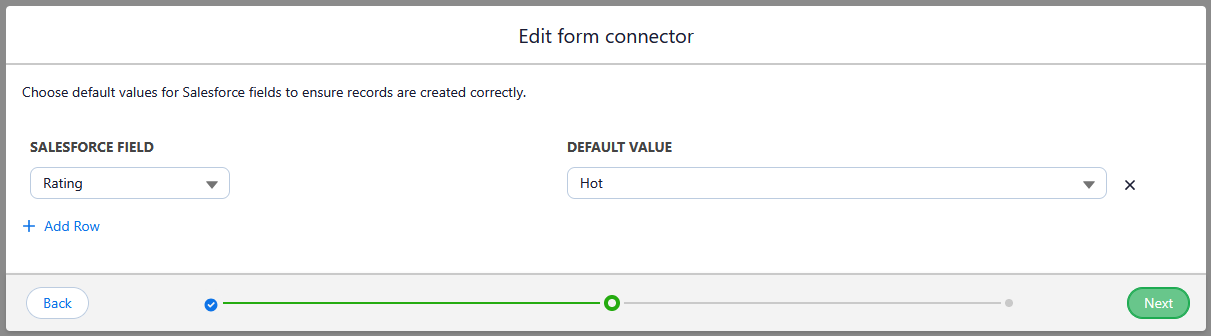
The default value screen of the form connector setup lets you set values for fields on your created record that the form doesn't populate. These fields are hardcoded to a specific value rather than dynamic based on form data. For example, you could set the source on all leads to 'Web,' as this stays the same across every lead created through your form.
To add new default data, click the Add row button and select the field you want to populate, and then select the value you want to populate with.
When you first load the page,any mandatory fields left unpopulated by the form data on the previous page are pre-selected. These fields will need to have data provided in order to create records in Salesforce.
Qualification Rules (Web form - qualification only)
Qualification Rules allow you to route different form entries to different end results, including different booking teams, or URL redirects.
See this page for information on configuring Qualification Rules.
Apply to users (Booking Engine type only)
For Booking Engine forms, you can apply the form connectors to the Book With Me forms belonging to hosts in your org. This means that any bookings made via that users Book with Me forms will use the form connector logic to associate with an existing record or create a new one.
Apply to Shared availability rules
This screen of the form connector setup lets you define which Shared Availability rules will use this form connector. When related, any bookings made via that shared availability rule will use the form connector logic to associate with an existing record or create a new one.
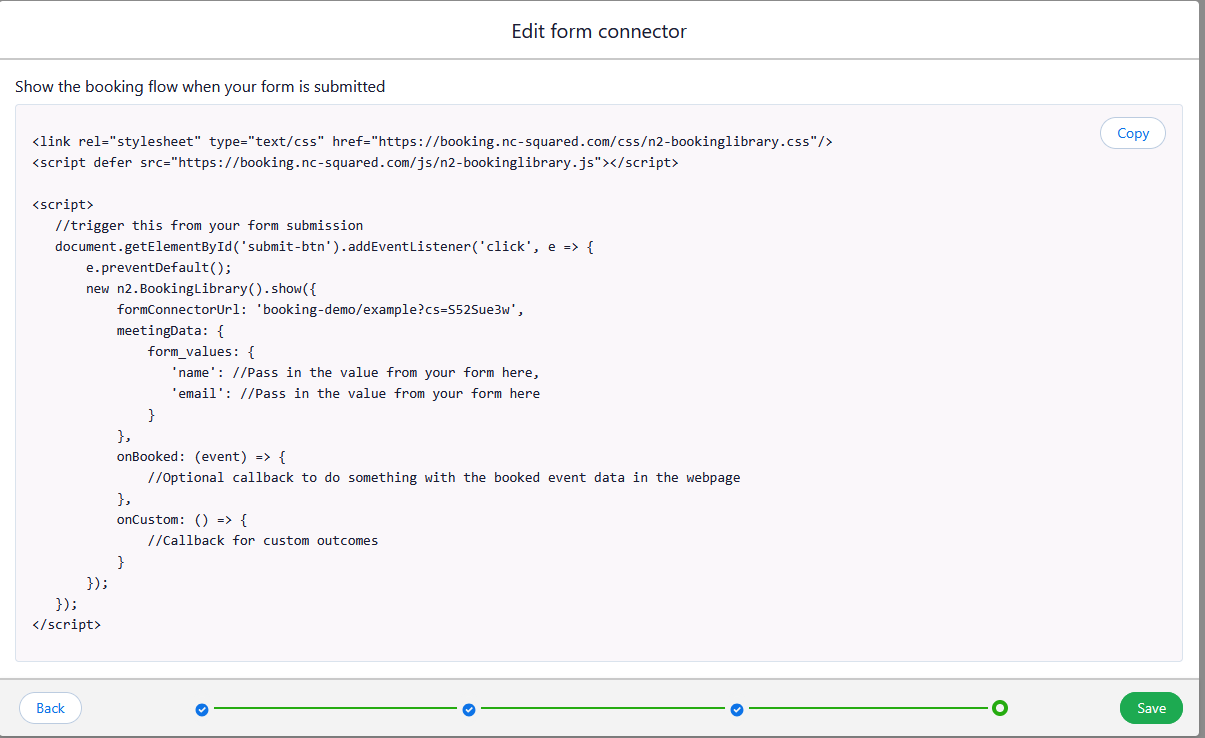
Code Snippet(Web form - qualification only)
The code snippet displayed on this screen is to be inserted into the page where you would like the Booking Engine experience to appear. For more details see this page.
How did we do?
Shared Availability