Booking Engine - Book With Me
This feature requires both external services and Book With Me are enabled from the external services page by a Booking admin. The Book with Me feature allows guests to schedule time with you using a…

The Book with Me feature allows guests to schedule time with you using a unique booking link.
Each user with the Booking Host permission set can create their own booking links, which can be shared directly with anyone who needs to arrange a meeting. When the recipient opens the link, they are able to select from the host’s available times and confirm a booking without requiring back-and-forth communication.
This ensures a smooth scheduling experience and gives agents control over their availability while making it simple for others to book time with them.
View our quick start for a complete end-to-end guide for configuring Book With Me.
Managing Book With Me
Users with the Host permission set can manage their book with me links from the Book With Me page Booking User Settings tab.
Users can view a list of their existing Book With Me links, their duration, URL slug and whether they are active. The row menu allows users to copy the URL for that Booking link to their clipboard, activate/deactivate the link and delete the link.
Creating and managing Book With Me links
To create a new Book With Me link, click the 'Add Book With Me Link' button at the top of the Book With Me page. To open an existing BWM link, click the name of the link.
Settings
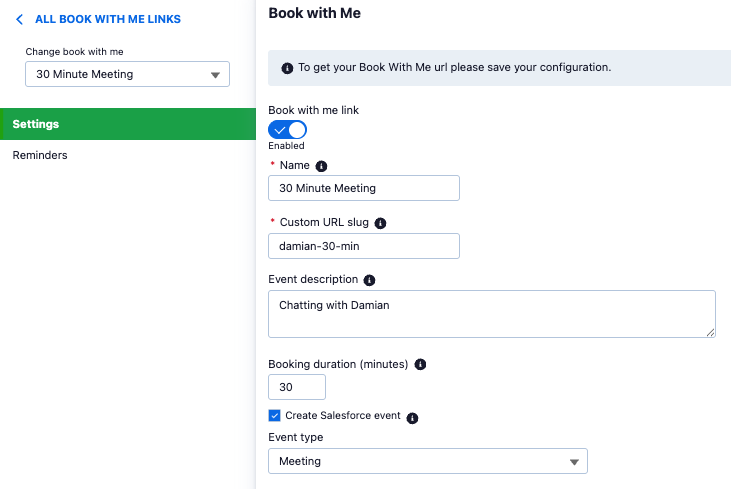
The URL to allow users to book meetings through the Book With Me link is displayed at the top of the page. For new links, the URL will appear once the mandatory information has been saved.
Book With Me links contain the following settings:
Enable/Disable Toggle: You will need to enable your Book WIth Me link to allow users to access the booking URL. When disabled, the URL will instead display an error message.
Name: The name of the Book With Me link, this is used to identify the link within Booking Engine and is not displayed externally.
Custom URL Slug: This is the custom identifier for the URL for this Book With Me link. This field accepts lower case letters, numbers and the dash symbol and must be unique across your org.
Event description: This text area allows you to provide text that will be used in the body of the event invite that the guest will recieve when booking a meeting through this link.
Booking Duration: How long the meeting lasts in minutes. Meetings can be 5-360 minutes long.
Create Salesforce Event: If ticked, a Salesforce event will be created for each booking made through this Book With Me link. If this link is associated with a form connector then the event will be associated with any related record.
Event type: If creating a Salesforce Event, this allows the selection of the event type.
Bookable hours: This defines the hours which are available to book for each day of the week. You can select your timezone, and then the hours available for every day. You can toggle days off if you do not want any bookable hours that day. In addition to your bookable hours, guests will not be able to book over any events in your diary marked as 'busy' .
Reminders
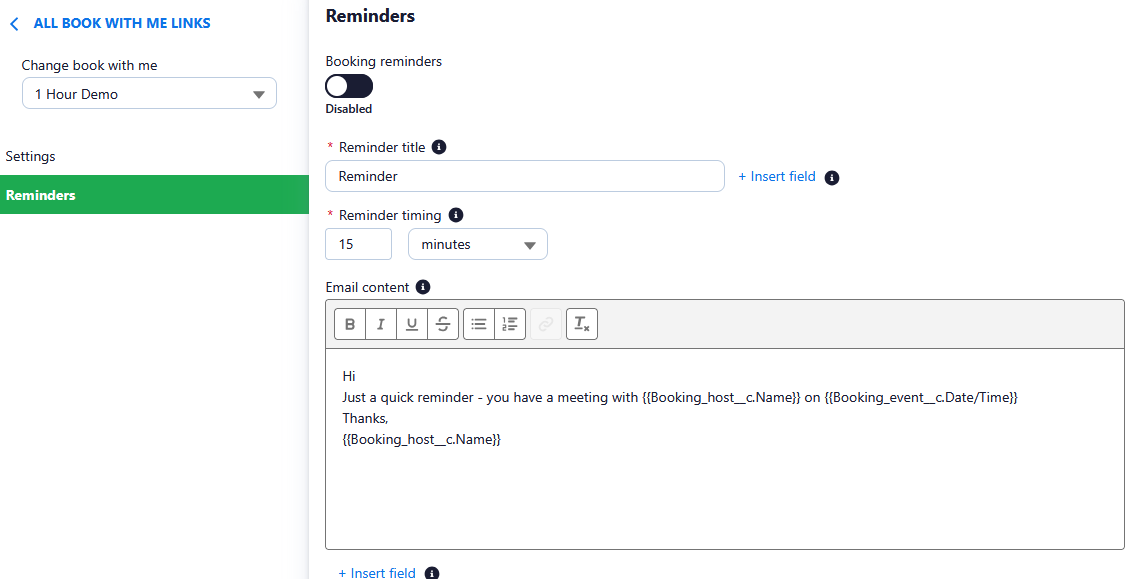
You can optionally choose to send reminder emails for your Book With Me events. These will be sent to guests at a set period before any meeting booked using this link. To manage these, click on the 'Reminders' page on the left navigation.
From this page you can enable and disable whether reminders are sent and configure the contents of the reminders.
Reminders contains the following settings:
Enable/Disable toggle: When enabled, reminders will actively be sent for this booking link.
Reminder Title: This field populates the subject field of the reminder email. You can use fields from the Booking Event or Host details by clicking the Insert Field button.
Reminder Timing: How long before the meeting the reminder email will be sent.
Email Content: The contents of the reminder email. You can use fields from the Booking Event or Host details by clicking the Insert Field button.
How did we do?
My Bookings
User Settings