Web forms Booking - Quick Start
Overview. Web Forms Booking lets you embed Booking Engine directly into your website—turning any form into an instant scheduling experience. Rather than collecting contact information and following u…

Overview
Web Forms Booking lets you embed Booking Engine directly into your website—turning any form into an instant scheduling experience. Rather than collecting contact information and following up asynchronously, prospects and customers can book a meeting with your team in the same moment they express interest. No more back-and-forth scheduling emails or calendar coordination, and no lost momentum while you follow up.
Booking Engine selects the correct team and the appropriate host within it — then creates a Salesforce record for the submission and invites both guest and host to the meeting.
This page will step you through the setup of web forms within Booking Engine.
Booking Engine Installation
If you have not completed the Booking Engine installation process, you can follow the install guide.
Entities
Web Forms are built around three main entities:
- Shared Availability rules — Contain the definitions for team members and the booking events themselves
- Form Connectors — Define the data being used, and how it connects into Salesforce
- The Form itself — The form hosted on your website. Some minor JavaScript changes are needed to embed Booking Engine in your form
Setup
External Settings
In order to ensure that Booking Engine can capture submissions from your form, you will need to ensure that you add the form's domain to the Booking Engine white list.
To do this; navigate to the Booking Settings tab of Booking Engine and click on the External Services page.
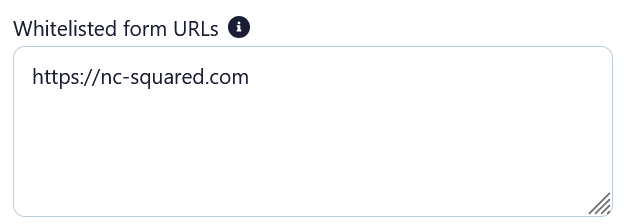
On this page you can then add the domain of your form(e.g. https://yoursite.com) to the Whitelisted form URLs section. Please note that you do not need to add the path to each form. You can enter multiple URLs to white list by separating them with a comma.
Create Shared Availability Rule
In order to create a booking and route it to the right hosts, you will need to create a shared availability rule. You can also use a shared availability rule that you have made prior to setting up your webform.
Click here to learn about Shared Availability Rules.
Create Form Connector
Form connectors allow Booking Engine to work with the data on your form, mapping your form fields to Salesforce fields and defining which field is used for matching.
Click here to learn about Form Connectors.
Update form
In order to display the booking component and pass information to Booking Engine, you will need to make some minor updates to your form, which are detailed on this page. Once you have updated the form, you can test your implementation and push live.
How did we do?
Handover - Quick Start